The free way: a friend sets your passcode
- Open Settings, then Screen Time. Turn on App Limits for the apps you want to limit.
- Turn on the Screen Time passcode, and let your friend type a code you don’t see.
- When a limit runs out, your friend types the code on your phone to give you more time.
Apple says the passcode is what you need to change Screen Time settings, limits or restrictions. Apple’s steps
Where the free way falls short
- Your friend has to be with you. The code is typed on your phone, not theirs.
- Every change to your limits needs them too.
- A forgotten passcode is reset with the Apple Account entered at setup. If that is your account, you can reset it yourself.
The Waive way
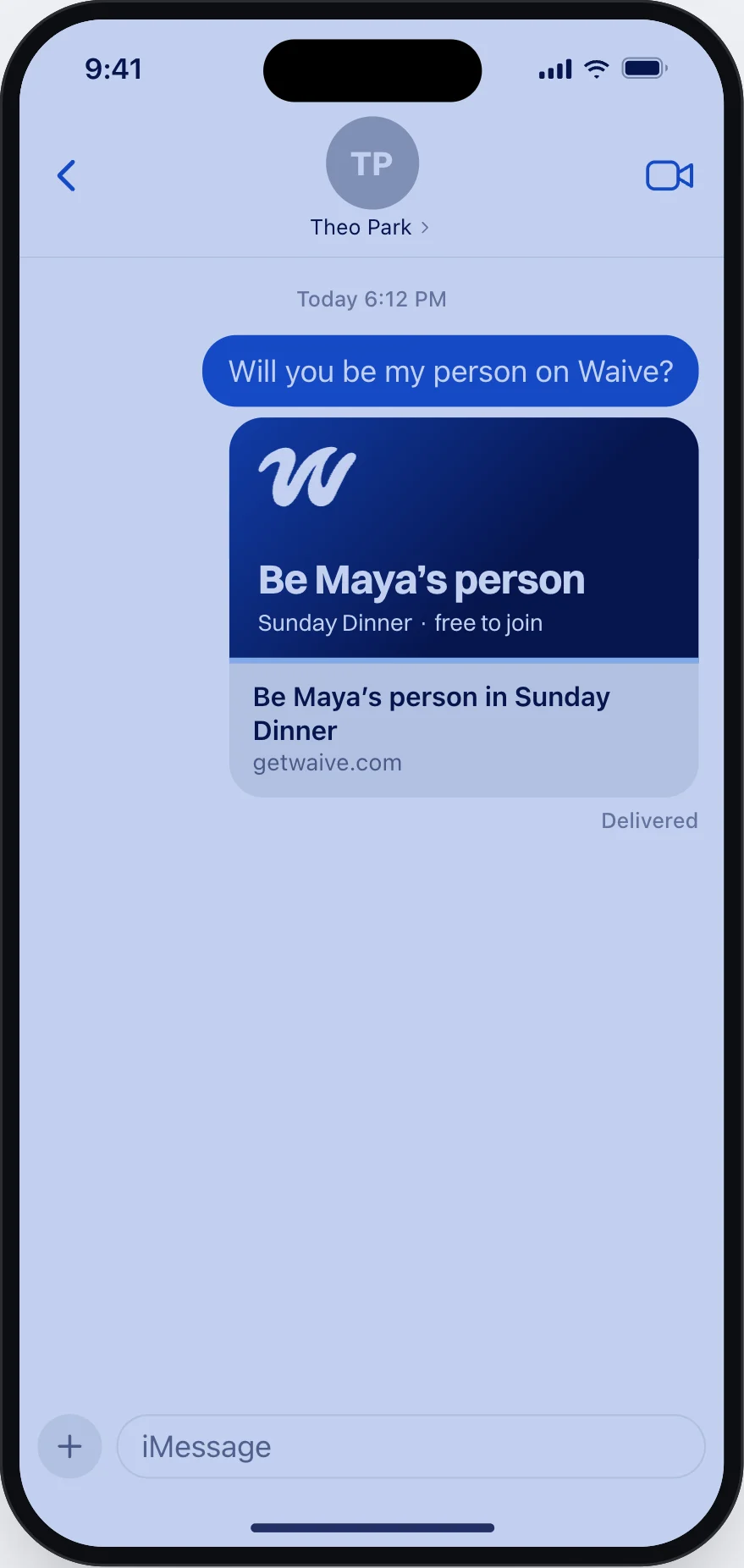
Pick your apps and your people
You pick the apps in Apple’s Screen Time list. Then you invite up to 5 people with a link. They join free.
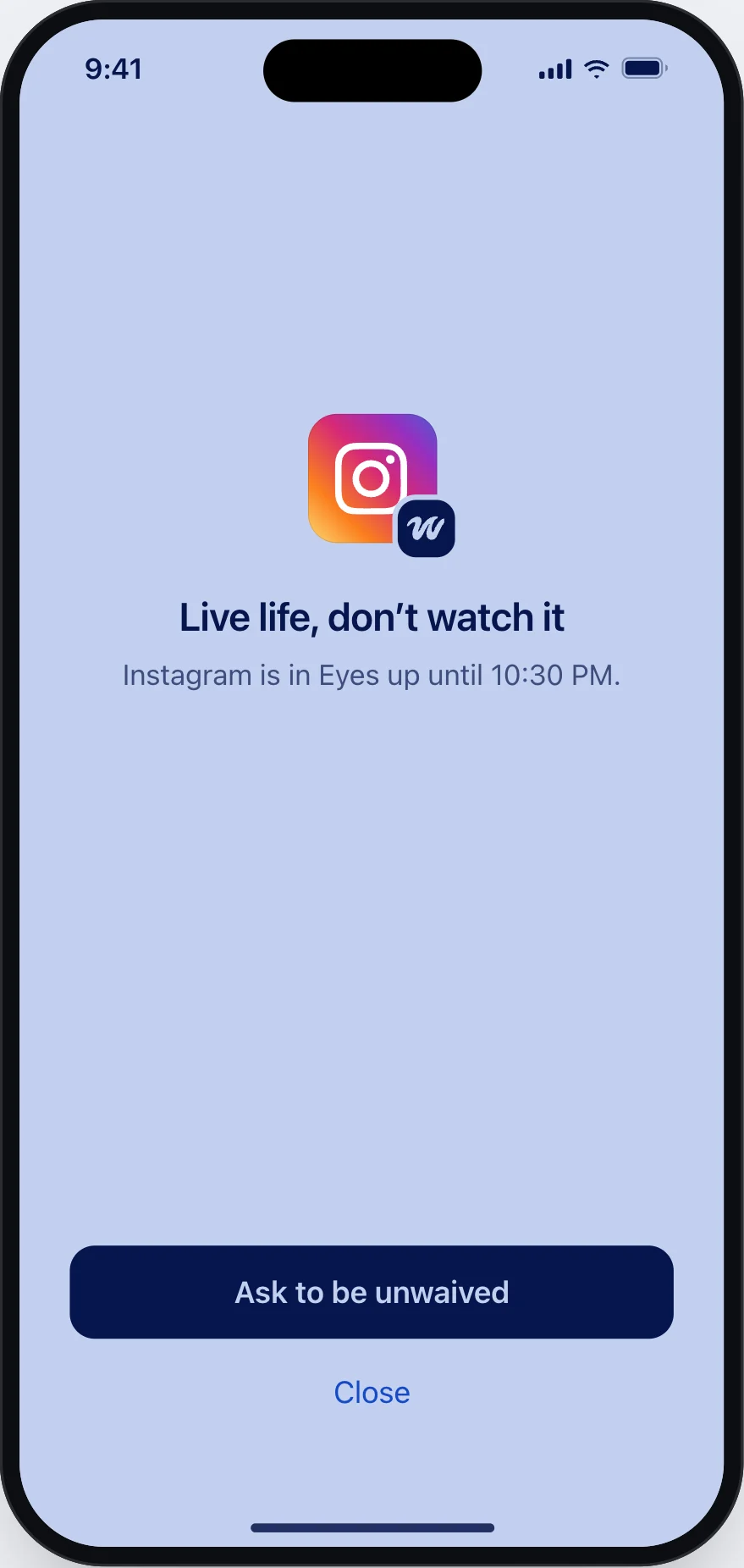
Ask when you need out
Open a waived app and ask your people. You can add a reason. They get a notice on their phone.
They break your waive from their phone
One tap opens your apps for the time you asked. Then they lock again. Nobody has to hold your phone.
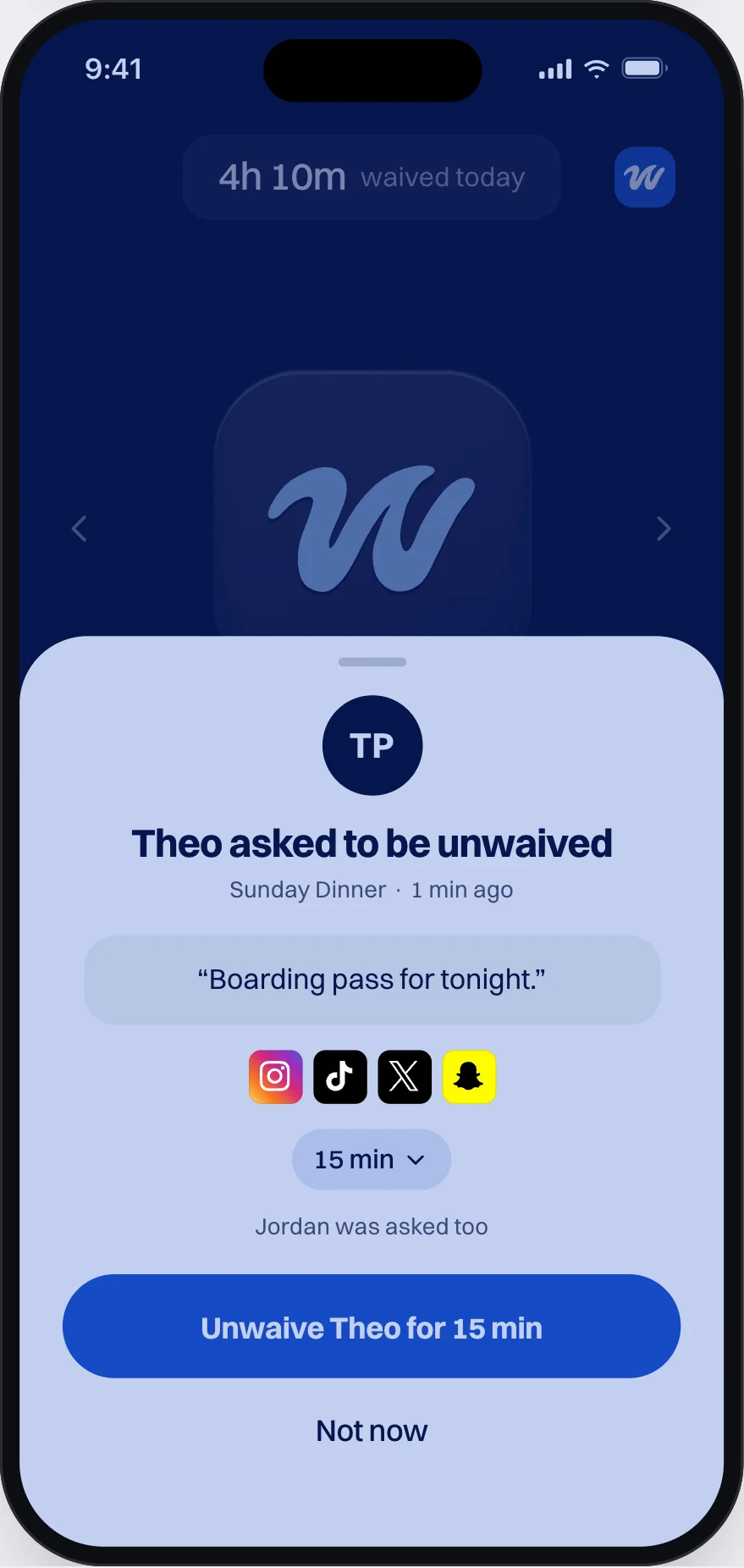
What your people see
Your request and one button. Never your list of apps.
If nobody answers
A waive with an end time ends on its own. You also get a few emergency breaks to use on your own phone, and you can buy more in the app. Calls and Emergency SOS always work.
What Waive can’t stop
- You can turn off Screen Time access for Waive in iPhone Settings. The people you picked get a notice when you do.
- Waive needs an iPhone. It does not work on Android.
What it costs
Only the person who starts the group pays. The people you invite join free.
- Waive Pro: $49.99 a year or $14.99 a month, for you and 5 people. The yearly plan starts with 14 days free.
- Waive Max: $79.99 a year or $29.99 a month, for up to 30 people.
US prices. The App Store shows the price for your country before you pay.